Publish and manage your company website
Understand publishing, live updates, unpublishing and reset so you can control what customers see on your company domain.
Overview
Understand publishing, live updates, unpublishing and reset so you can control what customers see on your company domain.
Choose the right workspace
Use the everyday AI assistant to ask questions, find information and propose supported order changes. Review its cited guide or record link and check the confirmation card before approving an order action.
AI Website is a separate company workspace for creating and improving the public company website. Its saving and publishing controls have their own effects: saving changes to a published website can update it immediately.
Operational agents are ongoing automations with conditions, timing and an execution mode. Preview their matching work, review the actions and choose whether changes are simulated, require approval or run automatically where supported.
Steps
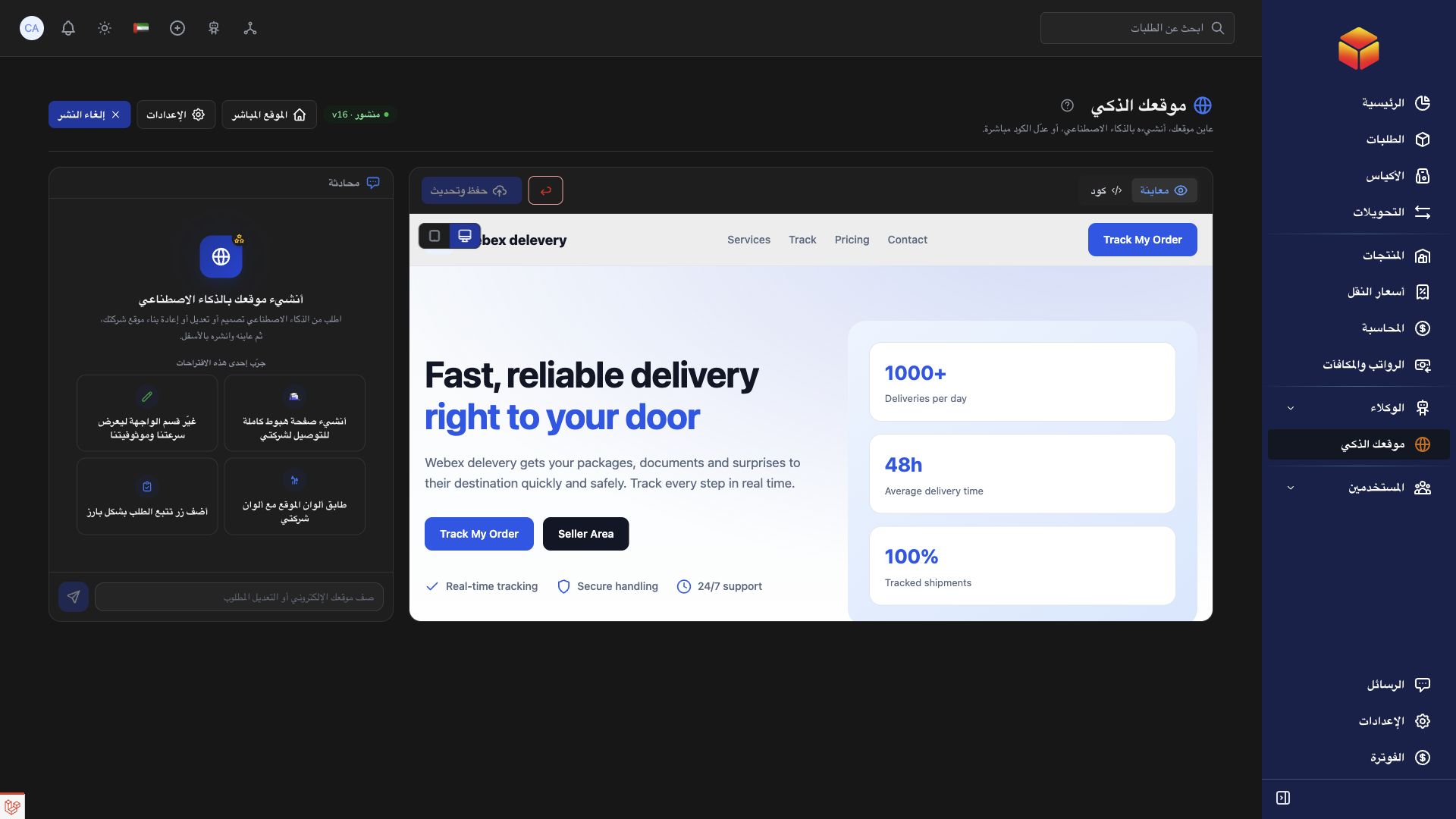
- Open AI Website with your company account. Finish creating the website, wait for a successful save and review it in Preview. An empty website cannot be published.
- Check the publication status and your company’s public domain. Use Settings to review the relevant company information. If the public address is missing or incorrect, arrange its configuration before announcing the website.
- Select Publish to make the saved website available on the configured company domain. Use Live Site to inspect the public result and test tracking and contact links.
- To temporarily remove the website from public view, select Unpublish. The design remains saved so you can continue reviewing it and publish it again later.
- For a complete fresh start, choose Reset and read the confirmation carefully. Confirming replaces your design with the default presentation and unpublishes the website. Review and publish the replacement when it is ready.
Saving and publishing have different effects
On a new, unpublished website, saving keeps your work available in the builder without launching it publicly. Publish changes its availability to customers. You do not need to recreate the site every time you want to take it offline: Unpublish preserves the saved page.
Once a website is published, further saves keep it published. This includes changes saved by the assistant during a conversation. Those updates can reach the live website immediately; there is no separate publish-again step protecting unfinished revisions. Unpublish first if you need to prepare and check changes privately, remembering that customers will see an unpublished page during that period.
Review the public experience
Publishing does not register a new domain or connect an arbitrary address. The public website uses the domain already configured for your company. The Live Site link is useful for checking that address; changing a website description or mentioning a domain in the chat does not establish a new public address.
Check the public site from a customer’s perspective: logo, language, contact details, service claims, prices and order tracking should all be correct. Preview tracking links may open using the address of your current workspace; verify the final customer journey on the actual company domain.
Reset is a replacement, not a rollback. The builder shows a version number but does not provide a version-restoration action. Prefer small, reviewed changes and keep important approved wording available before requesting a full redesign.
Good to know
Unpublish keeps your current design. Reset replaces it and unpublishes the site. Choose the action that matches your intention before confirming.
Application links
Application links require the appropriate account access. The destination is selected for your signed-in role.