Manage variants and stock
Products may use variants and stock controls to represent different purchasable options and inventory quantities.
Overview
Products may use variants and stock controls to represent different purchasable options and inventory quantities.
Catalog, stock and customer checks
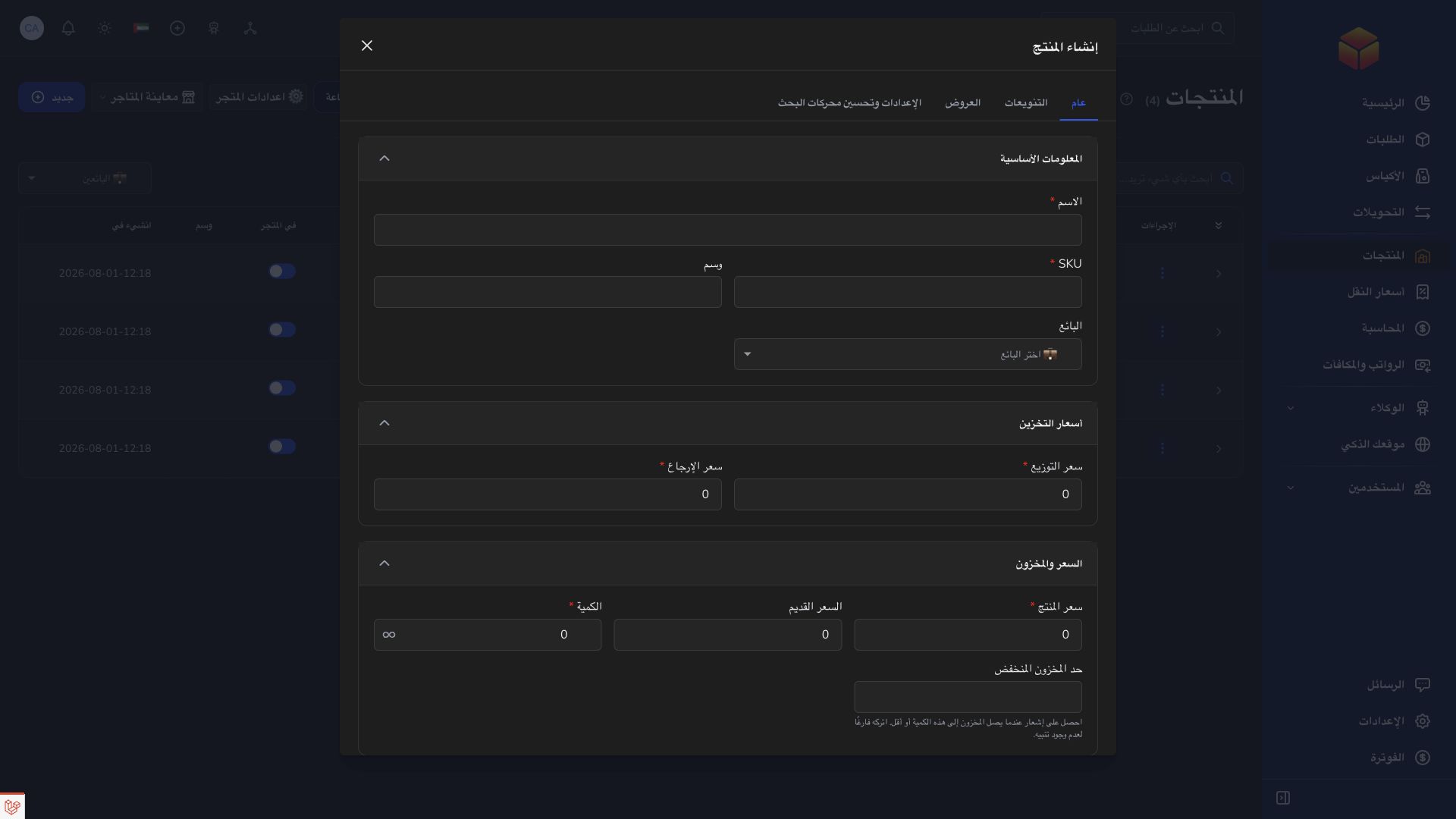
A product can contain a name, SKU, vendor assignment, price, delivery and return prices, quantity, pictures and optional variants or offers. Treat the SKU as an operational reference and keep the product description clear enough for the person preparing the shipment. A thumbnail represents the product in lists; the additional gallery helps the customer inspect it.
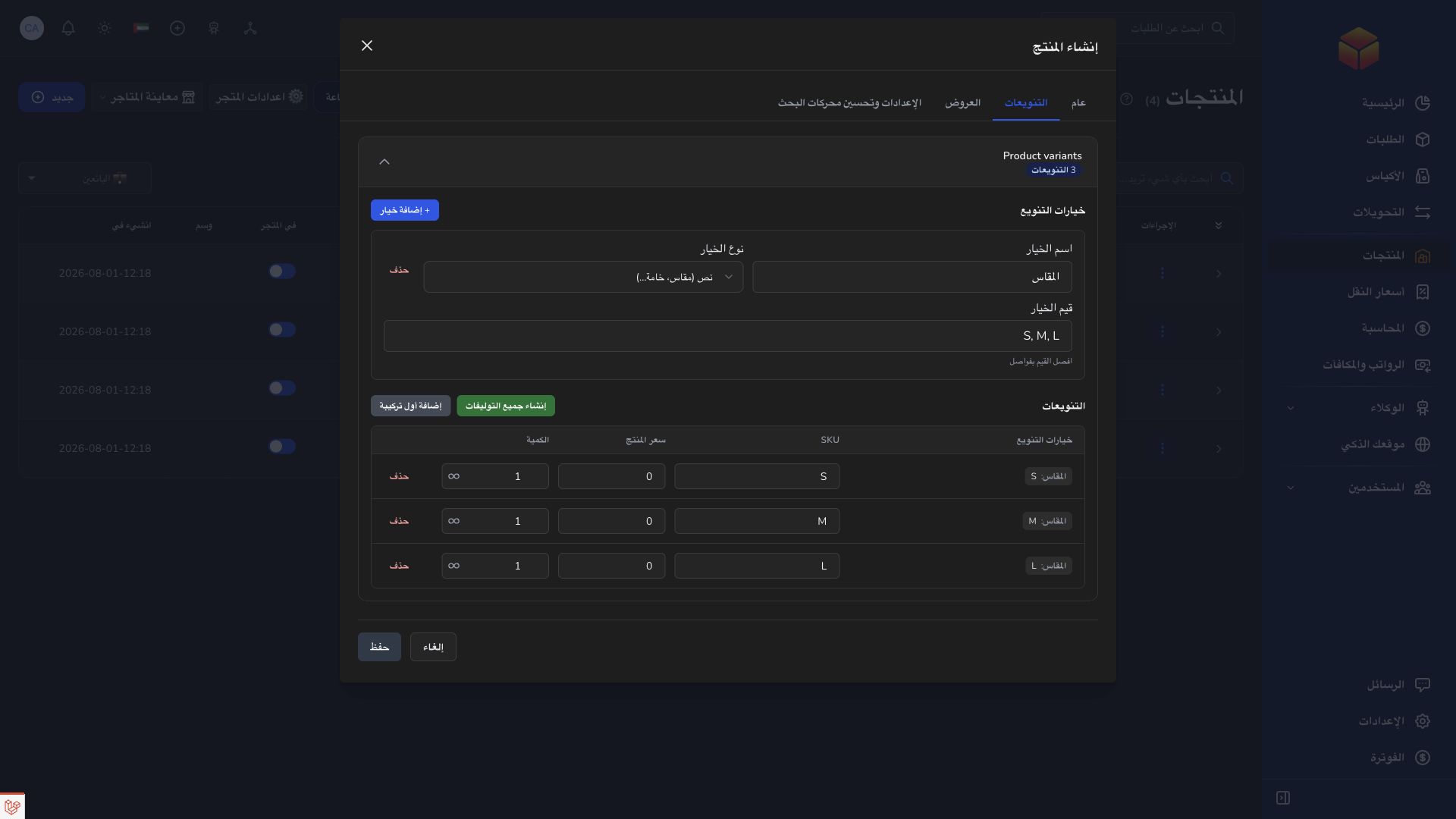
When variants are enabled, their options and quantities control the purchasable combinations. The main quantity field can therefore be unavailable. Unlimited quantity is a deliberate fulfillment mode, not a correction for an unexplained stock difference. Use stock adjustments and movement history where available to understand inventory changes before entering a replacement amount.
Store settings and product visibility affect the customer-facing journey. After saving, inspect the generated store link, product details, pictures, available options, cart and checkout information. Check both product and delivery amounts. Keep customer-facing links separate from private configuration URLs and verify the saved result before sharing a store with customers.
Steps
- Open the product and review whether variants are enabled.
- Maintain the option values and quantities through the variant controls when the product uses variants.
- Use the stock adjustment and stock movement views offered in the product list to record and review inventory changes.
- Set a low-stock threshold or unlimited quantity only when it matches how the product is actually fulfilled.
Good to know
When variants manage quantity, the main product quantity field may be disabled. Check the active stock mode before attempting to correct a quantity.
Application links
Application links require the appropriate account access. The destination is selected for your signed-in role.