Start conversations and reply to messages
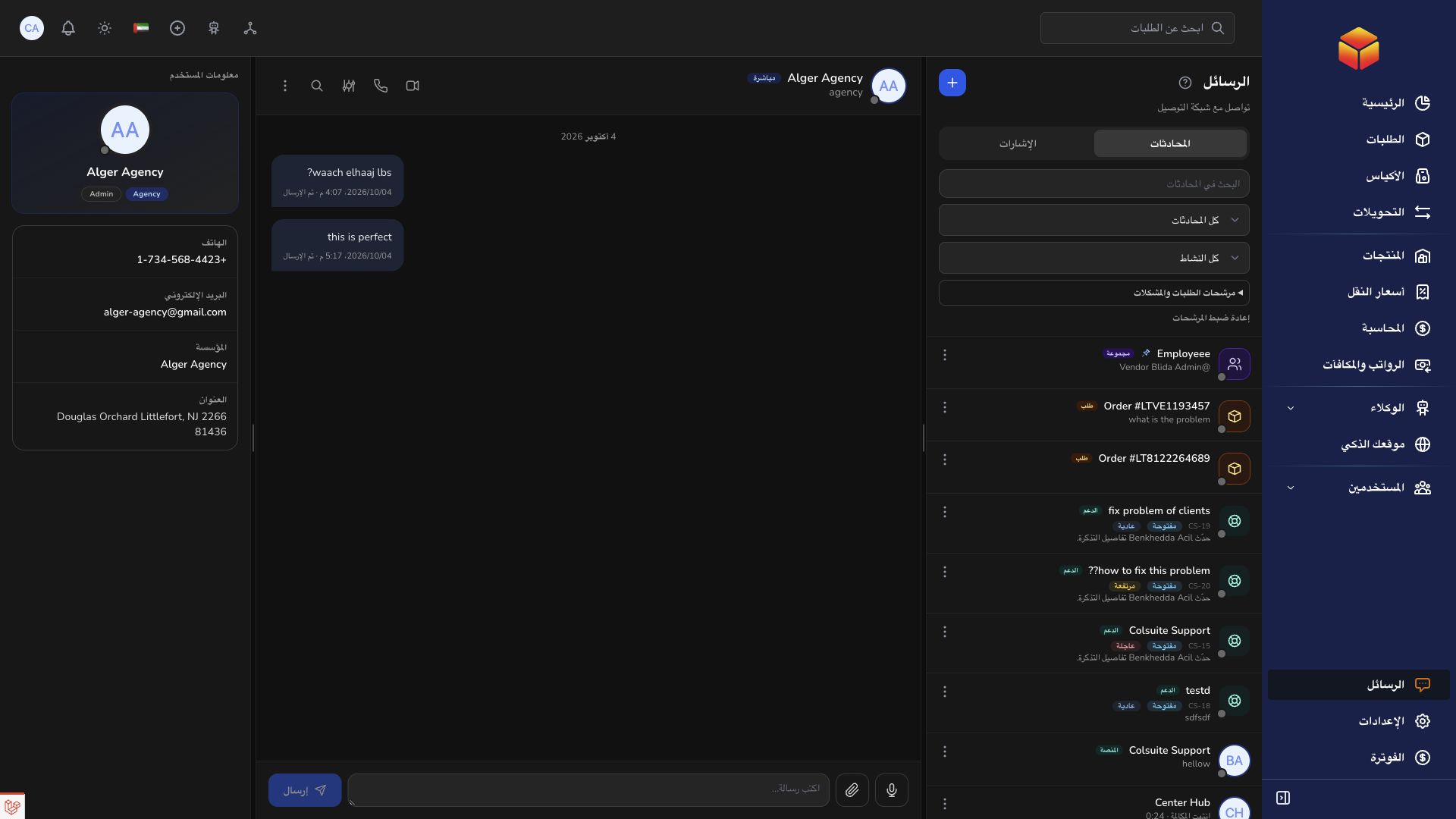
Messages brings direct, group, order-related and support conversations into the communication workspace.
Overview
Messages brings direct, group, order-related and support conversations into the communication workspace.
Conversation visibility and reliable coordination
Direct conversations connect available contacts. Groups collect selected participants; order conversations preserve shipment context; support conversations track requests for assistance. Use the appropriate conversation instead of spreading the same issue across several unrelated chats. Check the title, participants and linked reference before posting.
Files and screenshots are visible to the people allowed to access the conversation. Remove unrelated private information before sharing them and review the pending attachments before sending. If an upload is rejected, check the displayed validation feedback rather than repeatedly submitting the same file. Mention the order, bag or transfer reference in text so the discussion remains searchable.
Pins highlight a conversation or message; notification settings affect alerts. Neither changes an order status, records a handover, nor resolves a ticket. Complete the operational action in its record and use the conversation to explain it. When a conversation is muted, review unread messages and mentions at an appropriate interval so a request is not missed.
Steps
- Open Messages and choose a conversation from the inbox.
- Use the conversation filters or search to find the relevant discussion.
- Start a direct conversation by selecting an available contact, or open an existing order discussion when working on a shipment.
- Type your reply and send it. Keep order references in the discussion so other participants can follow the context.
Good to know
Contact visibility and conversation membership depend on access rules. Messages are visible to the participants permitted to access that conversation.
Application links
Application links require the appropriate account access. The destination is selected for your signed-in role.