Make voice and video calls
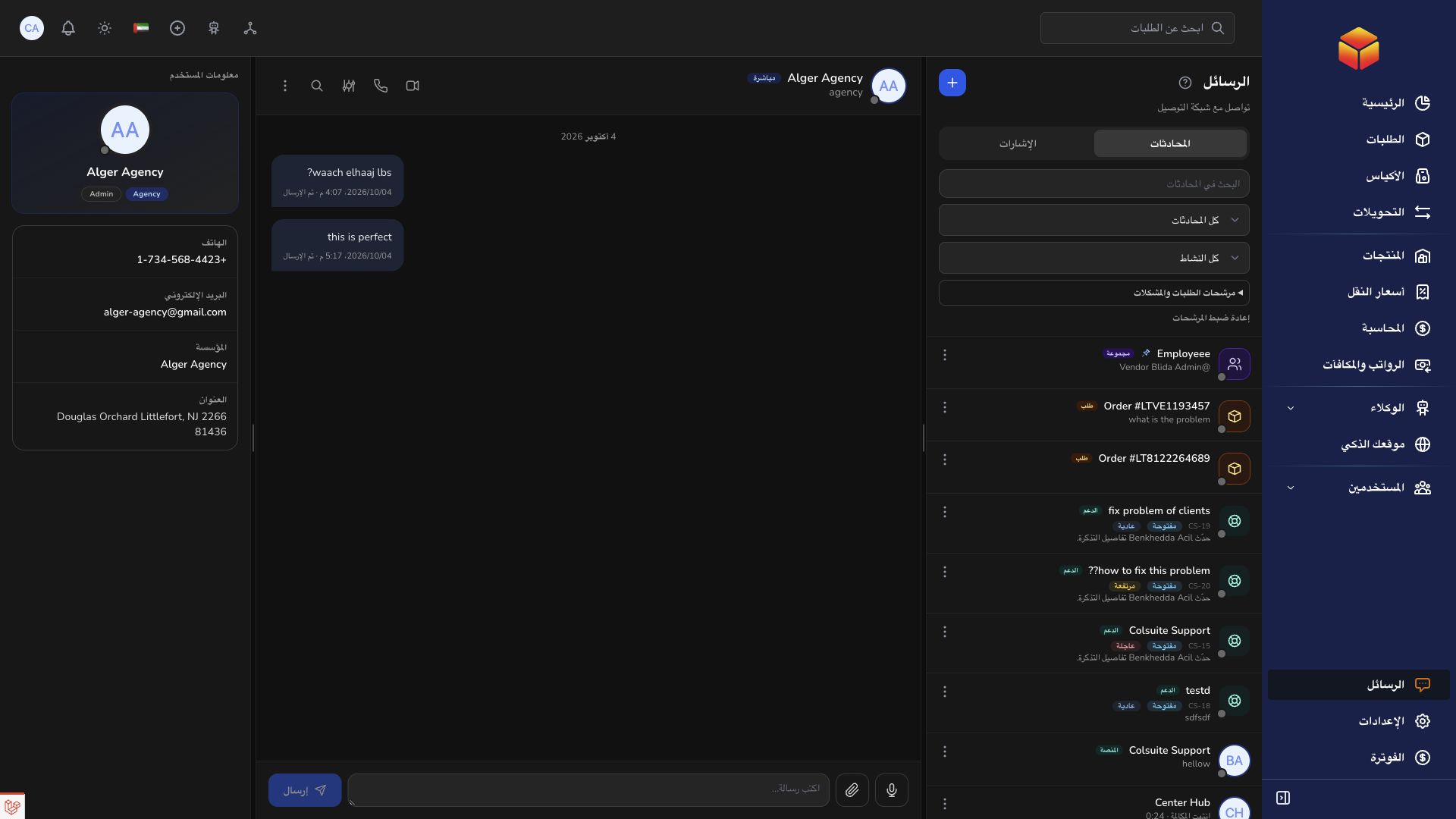
Call an eligible contact from Messages, control your microphone and camera, and share your screen while keeping the conversation accessible.
Overview
Call an eligible contact from Messages, control your microphone and camera, and share your screen while keeping the conversation accessible.
Conversation visibility and reliable coordination
Direct conversations connect available contacts. Groups collect selected participants; order conversations preserve shipment context; support conversations track requests for assistance. Use the appropriate conversation instead of spreading the same issue across several unrelated chats. Check the title, participants and linked reference before posting.
Files and screenshots are visible to the people allowed to access the conversation. Remove unrelated private information before sharing them and review the pending attachments before sending. If an upload is rejected, check the displayed validation feedback rather than repeatedly submitting the same file. Mention the order, bag or transfer reference in text so the discussion remains searchable.
Pins highlight a conversation or message; notification settings affect alerts. Neither changes an order status, records a handover, nor resolves a ticket. Complete the operational action in its record and use the conversation to explain it. When a conversation is muted, review unread messages and mentions at an appropriate interval so a request is not missed.
Steps
- Open Messages and select a direct conversation. For an eligible support ticket, check the person named by the call control.
- Use the phone icon for a voice call or the camera icon for a video call. Allow microphone access and, when using video, camera access in your browser.
- Wait for the other person to accept. When receiving a call, choose Accept to answer or Decline to reject the invitation.
- Use Mute or Unmute to control your microphone. Enable your camera or share your screen with the available controls.
- Drag the panel by its header to move it. Minimize an active call to keep working, then restore the panel when needed.
- Choose Hang up or the panel’s close icon to end the call. Minimize keeps the call going; Close ends it so the other person can no longer hear or see you.
Who you can call
You can call one person at a time from an available direct conversation. Group and order conversations do not offer group calls.
In a support ticket, check the name on the call button to see who you will reach. This may change if a different support agent takes over your ticket.
If the call button is missing, ask your administrator whether calling is available for your account. If the other person is already on a call, try again later. If they do not answer, you can call again when they are available.
Video, screen sharing and privacy
Accepting a video invitation does not automatically enable your camera. Turn it on yourself to send video. Where available, select another camera or switch between front and rear cameras.
Screen sharing depends on browser and device support. Choose the screen, window or tab in the browser permission dialog and check for private information first. Screen sharing replaces your outgoing camera video; stop sharing or switch back to the camera when finished.
Keep the browser tab open. Navigation inside the application and minimizing the panel keep the call accessible; reloading or leaving the page ends it. Call outcome and duration entries in the conversation are not audio or video recordings.
If you cannot connect or hear the other person
Allow access to your microphone and camera when prompted. If you previously blocked access, open the site permissions in your browser and allow the device you want to use.
Open call settings and choose the correct microphone. If a speaker choice is available, select your headphones or speakers. Check that your volume is turned up and your microphone is not muted. Use the play-audio button if it appears.
Use headphones to avoid echo and check that your internet connection is working. If the other person cannot hear you, check your microphone settings before trying again.
If the call still does not work, end it and start a new one. Contact support if the problem continues, explaining what happened and including the message shown on screen.
Good to know
Calls do not change order status or resolve support tickets. Record important decisions and delivery instructions in the conversation and complete the relevant operational action separately.
Application links
Application links require the appropriate account access. The destination is selected for your signed-in role.