Create and manage a product landing page
Create a dedicated page for one product, use AI to improve its presentation, and let customers order from it.
Overview
Create a dedicated page for one product, use AI to improve its presentation, and let customers order from it.
Catalog, stock and customer checks
A product can contain a name, SKU, vendor assignment, price, delivery and return prices, quantity, pictures and optional variants or offers. Treat the SKU as an operational reference and keep the product description clear enough for the person preparing the shipment. A thumbnail represents the product in lists; the additional gallery helps the customer inspect it.
When variants are enabled, their options and quantities control the purchasable combinations. The main quantity field can therefore be unavailable. Unlimited quantity is a deliberate fulfillment mode, not a correction for an unexplained stock difference. Use stock adjustments and movement history where available to understand inventory changes before entering a replacement amount.
Store settings and product visibility affect the customer-facing journey. After saving, inspect the generated store link, product details, pictures, available options, cart and checkout information. Check both product and delivery amounts. Keep customer-facing links separate from private configuration URLs and verify the saved result before sharing a store with customers.
Steps
- Open Products, find the product, and select its landing page status beneath its name. Each product has its own landing page. Company, vendor and agency users can manage eligible products according to their access.
- Review the product name, description, price, images, stock and options in Products first. The landing page uses information from the selected product and its store.
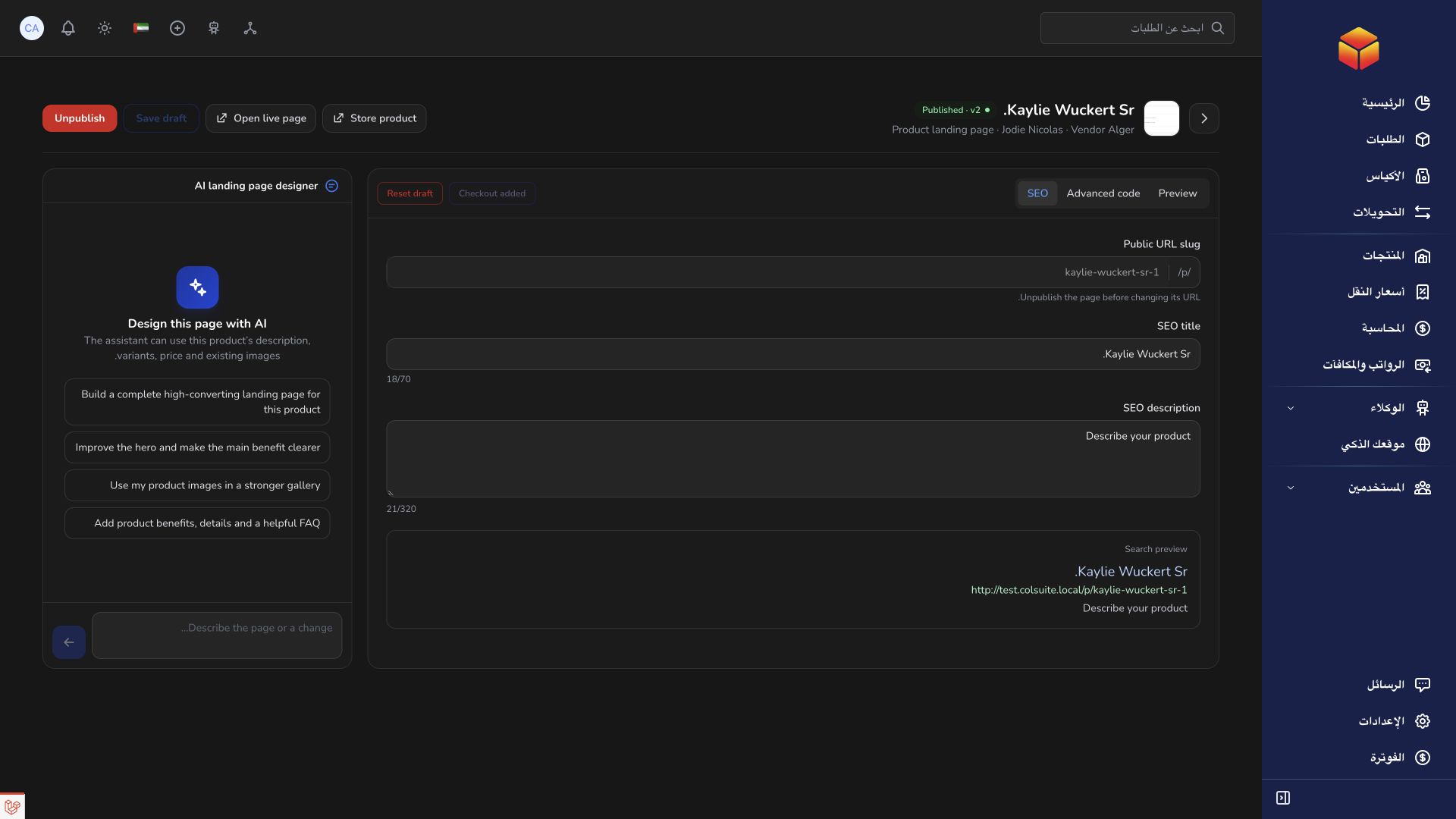
- In the AI landing page designer, describe the page you want, including its language, audience, colors and sections. For example, ask for a clear product introduction, benefits, product images and answers to common questions. AI access must be enabled for your account.
- Review the result in Preview using both desktop and mobile views. Check the product information, wording, images and ordering experience. If you make changes yourself, select Save draft before asking the assistant for further changes or publishing.
- Use SEO to review the public address, search title and description. Before publishing, ensure the product belongs to a vendor with a configured store domain and is visible in that store.
- Select Publish to make the saved page available. Open the live page and check it from a customer’s perspective before sharing its address.
Add and check the order form
The default page includes an order form. If it is missing, choose Insert checkout, then save the draft and review the preview. Only one order form can be added to a page.
The form uses the vendor’s existing store settings, available delivery destinations, product options and stock. Review the settings in the store and check prices, delivery choices and required information. The preview is for review only and cannot place an order.
Drafts, publication and changes
A draft is private until it is published. Changes saved after publication remain in the draft while visitors continue to see the previously published version. The status indicates when there are unpublished changes.
To make a changed draft live, save it, select Unpublish, then select Publish again. The page is unavailable to customers while unpublished. Unpublishing keeps the draft; Reset draft replaces the draft with the default page but leaves the published page unchanged.
A published page’s address cannot be changed until it is unpublished. Changing the address can make previously shared links stop working, so check and update them before sharing the new address.
Good to know
AI can help with layout and wording, but you remain responsible for checking product claims, images, prices and the customer experience before publishing. If a control is unavailable, check your access and the message shown in the editor.
Application links
Application links require the appropriate account access. The destination is selected for your signed-in role.