Understand roles and permissions
Roles establish the workspace a user belongs to; permissions control which operations that user may perform.
Overview
Roles establish the workspace a user belongs to; permissions control which operations that user may perform.
Accounts and organizational access
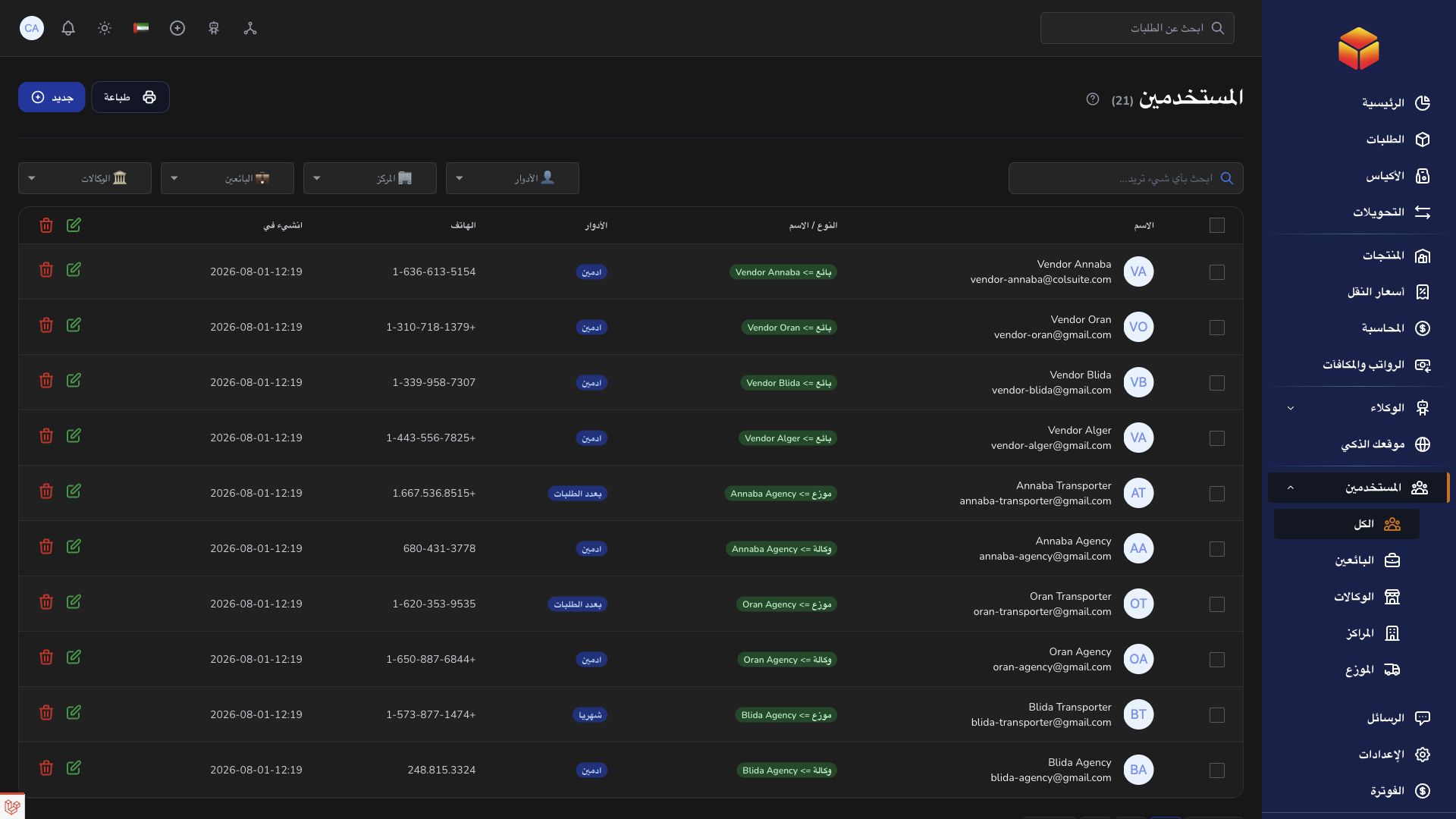
A user is a person’s login; a company, vendor, agency or hub is an organization or location record. These are distinct records, although some organization creation forms can also create an associated account when an email is supplied. Check the resulting users after saving. A company manages its network, while vendor users work within their merchant, hub or agency users within their location, and transporters within their assignments.
Choose the role and its assignment together. A correct role with the wrong vendor or location can show the wrong operational scope. Some roles also require a role type or payment-related settings. Read the fields that appear after choosing the role and do not reuse another person’s account to avoid completing this configuration.
A permission can restrict viewing, creation or a specific transition independently. If access fails, capture the page, attempted action and affected reference, then ask the responsible company administrator to check both assignment and permissions. Signing in again or reopening the page can confirm the new configuration; a public guide or shared link cannot bypass it.
Steps
- Identify the team and organization the user should work with, using the roles available to your company.
- Review their organization assignment and configured role type.
- Compare the action they need with the permissions available to that role.
- Ask an authorized administrator to adjust access, then have the user reopen the affected page.
Good to know
Access to documentation or a direct application URL does not grant permission to a record. Never change a user to a more powerful role solely to bypass an unexplained error.
Application links
Application links require the appropriate account access. The destination is selected for your signed-in role.