Apply the same AI action to several orders
Prepare a clear list of orders, review one shared action and verify results when processing up to 100 orders together.
Overview
Prepare a clear list of orders, review one shared action and verify results when processing up to 100 orders together.
Choose the right workspace
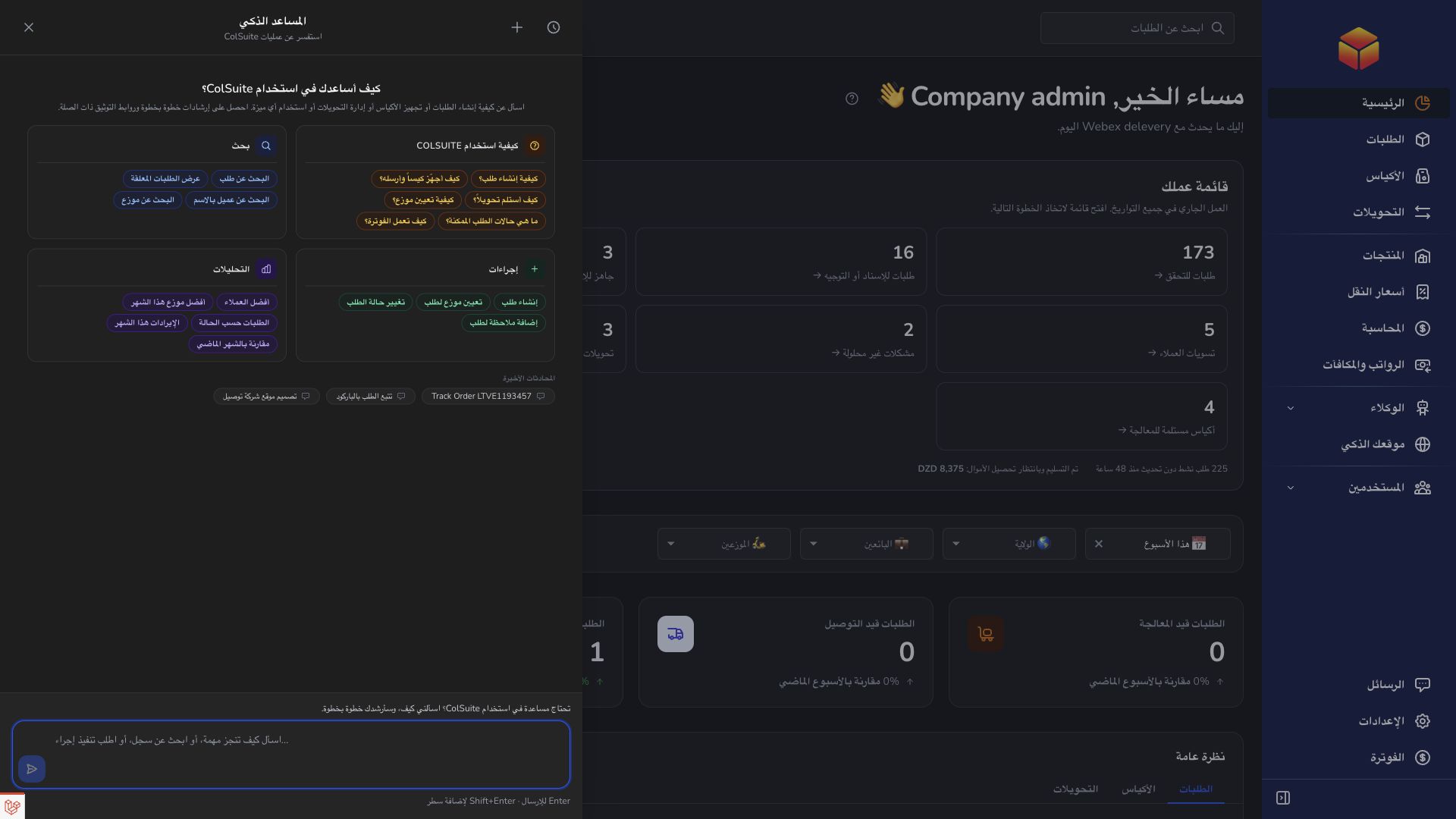
Use the everyday AI assistant to ask questions, find information and propose supported order changes. Review its cited guide or record link and check the confirmation card before approving an order action.
AI Website is a separate company workspace for creating and improving the public company website. Its saving and publishing controls have their own effects: saving changes to a published website can update it immediately.
Operational agents are ongoing automations with conditions, timing and an execution mode. Preview their matching work, review the actions and choose whether changes are simulated, require approval or run automatically where supported.
Steps
- Collect the exact barcodes of the orders you intend to change and remove duplicates.
- Choose one supported action and its shared details: one transporter, one target status, or one type of request.
- Ask the assistant to prepare the change for that explicit list. Check the proposed count and the full summary.
- Confirm only after reviewing the group. Afterwards, check the affected orders and resolve any failures before trying again.
Choose a supported shared action
Batch work supports assigning a transporter, removing transporter assignments, changing status, recording a delivery request and recording a return request. A single proposal applies the same action to every order, with a maximum of 100 orders. If different orders need different transporters or statuses, split them into separate groups.
For example, ‘Assign transporter Samira to DEMO101, DEMO102 and DEMO103’ uses invented barcodes. Replace them with real barcodes and add the transporter’s email if the name could be ambiguous. Do not assume that asking about a filtered list automatically selects every matching order for a change.
Prepare a group that can be processed
First ask the assistant to inspect the orders or identify those needing attention. Check their current stage, destination and assignment. Delivery assignment requires orders that have been received and verified, are in the hub stage and are no longer inside a bag. StopDesk orders cannot be assigned in this way.
Only include records you can access. A missing barcode, repeated entry or unavailable order can prevent a proposal from being prepared. Correct the list rather than approving a smaller group without checking which orders are included. For a group larger than 100, divide it into smaller lists and process each list separately.
Review the meaning and the outcome
Before confirming, check the number of orders, the barcodes named in the summary, the selected transporter and the intended destination status. Assignment can advance the delivery stage. Removing assignments keeps the current status. Delivery and return requests record a request without moving orders to another status.
The confirmation expires after ten minutes. Orders are processed individually, so a failure can occur after earlier orders have already changed. Do not immediately repeat the entire group: first check the current state of each order and request another action only for those that still need it. A failed group does not mean that every order remained unchanged.
Creating several new orders, writing different notes to a group or making different corrections per order are not supported by this shared batch action. Use individual requests or the appropriate order page for those tasks.
Good to know
For work with operational agents, use the separate agent guide. A one-time batch request in the assistant does not create an automated recurring workflow.
Application links
Application links require the appropriate account access. The destination is selected for your signed-in role.