Test and enable operational agents
Preview matching records, understand the effect of a real test and enable an agent only after checking its expected behavior.
Overview
Preview matching records, understand the effect of a real test and enable an agent only after checking its expected behavior.
Choose the right workspace
Use the everyday AI assistant to ask questions, find information and propose supported order changes. Review its cited guide or record link and check the confirmation card before approving an order action.
AI Website is a separate company workspace for creating and improving the public company website. Its saving and publishing controls have their own effects: saving changes to a published website can update it immediately.
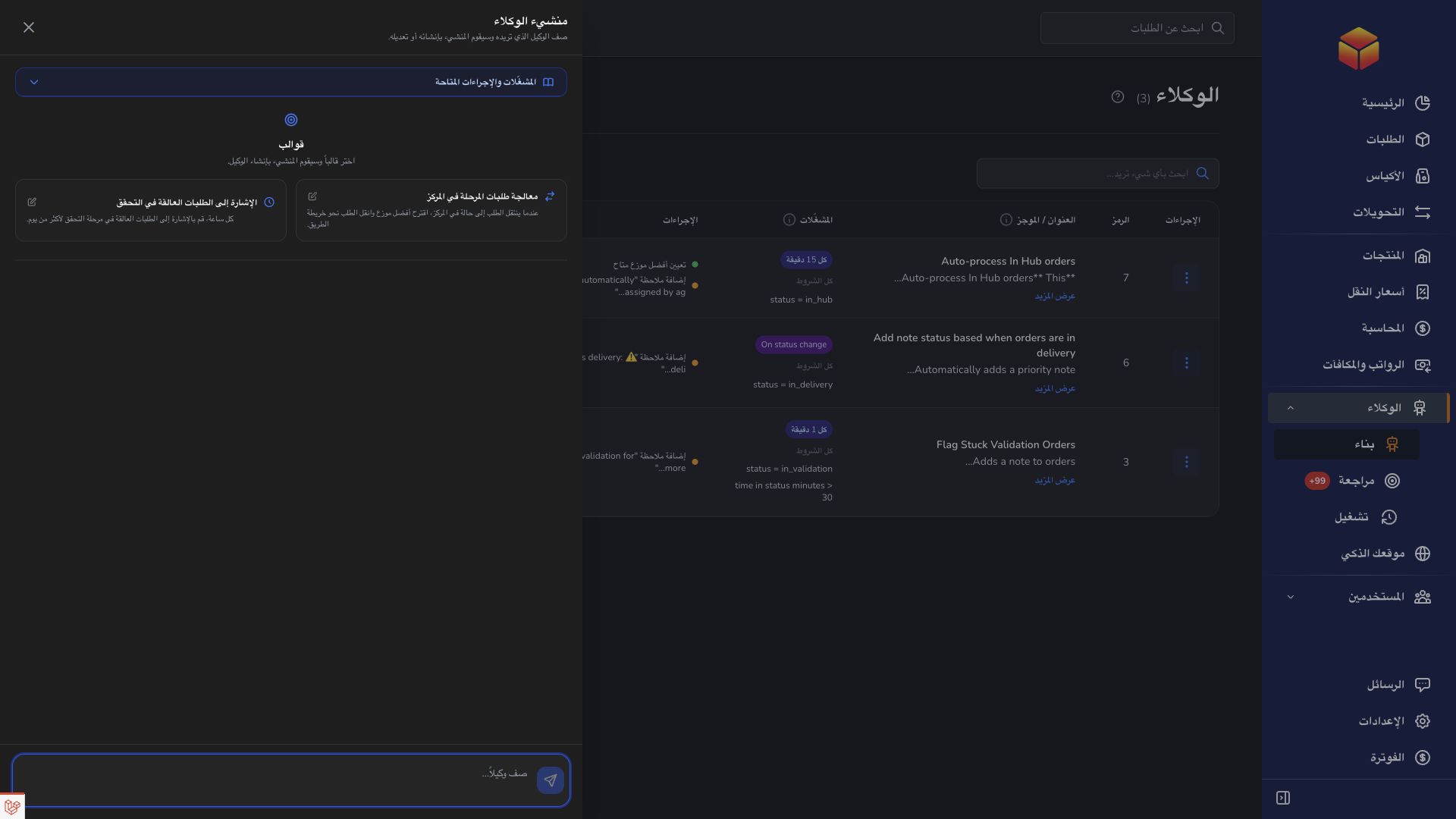
Operational agents are ongoing automations with conditions, timing and an execution mode. Preview their matching work, review the actions and choose whether changes are simulated, require approval or run automatically where supported.
Steps
- Find the agent in Agents and check its subject, conditions, mode and enabled status.
- Open Test and begin with a specific subject. For an order, enter its barcode or order reference; for other subjects, enter the reference requested by the dialog.
- Leave Execute actions for real unchecked, choose Run test and inspect the matching result, reasons and suggested actions.
- After a successful preview, review the wider matching scope, choose the intended mode in Settings and enable the agent. Follow its runs and reviews afterward.
Start with a preview
A preview checks the saved rules without performing the proposed changes or creating approval requests. A specific-subject test helps you compare the result with a record you already understand. A result that does not match can be correct: inspect its current status, transporter, stock level and other relevant conditions before changing the rule.
The company-wide scope checks the relevant subject type across your company. The result shows a matched count and samples; only the first ten matches are listed as samples. A short sample list therefore does not mean only those records were checked. Narrow a rule that matches unrelated work before enabling it.
Understand real tests before confirming
Selecting Execute actions for real asks for confirmation and follows the saved mode. Dry run still makes no changes. Review required creates pending approval requests for matching work rather than applying the suggested changes immediately. Automatic can apply the allowed actions immediately, including notes and delivery or return requests.
A manual test can be run while the agent is disabled. Treat the real-execution checkbox seriously even before enabling ongoing automation. Test on one intended subject first and check its actual page afterward. When some actions succeed and a later action fails during a real automatic test, inspect what already changed before trying again.
Enable, observe and pause
Use Settings to choose the mode and switch the agent to Enabled, or use its status control in the list. A scheduled agent then follows its timing settings; an event agent waits for a supported new event. Enabling does not mean every existing record will be changed immediately.
Agent Runs shows recorded attempts and their outcomes. Agent Reviews contains suggestions waiting for a decision. The Run now action in the list records a preview and opens run history; it does not replace the real-execution confirmation in Test. Disable the agent if it matches unexpected work, refine the rule and preview again. Pending reviews still require your attention: inspect or dismiss them separately.
Good to know
A completed preview means the check finished. It does not prove that a delivery, assignment, status change or other proposed action was carried out.
Application links
Application links require the appropriate account access. The destination is selected for your signed-in role.